
Ventoy: "Security Violation" with Secure Boot
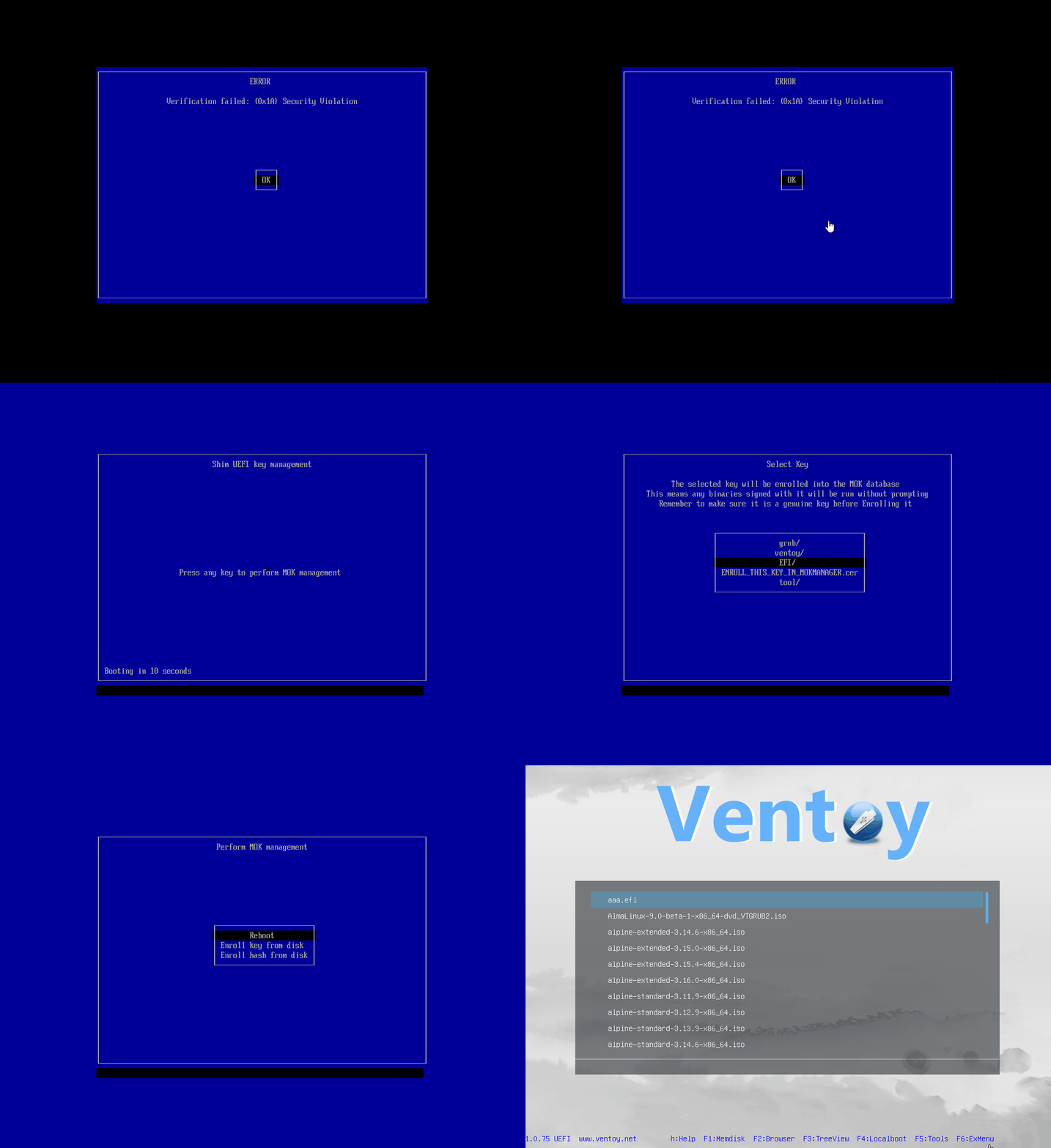
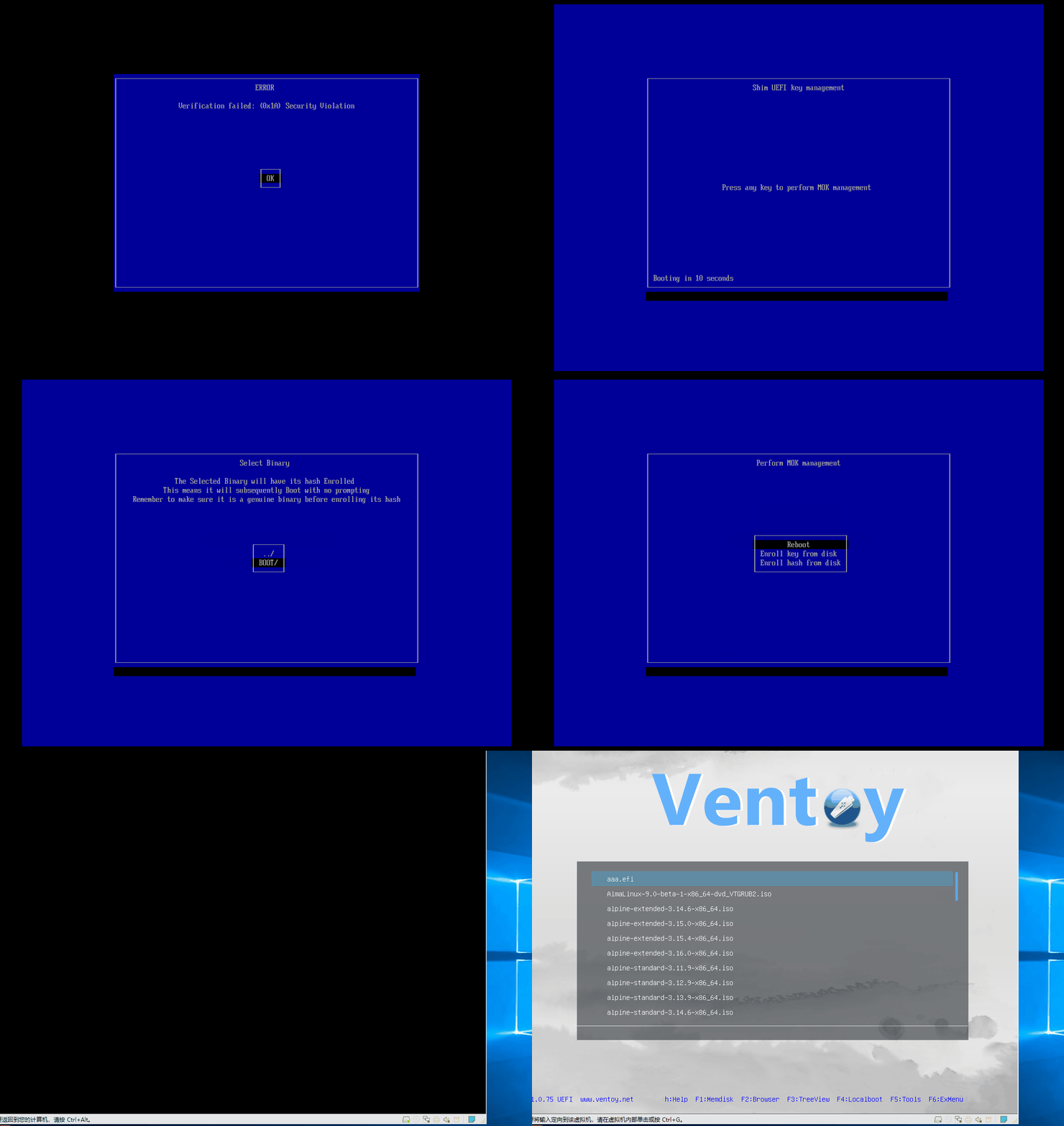
When Secure Boot is on in your PC’s firmware, the first time you boot a Ventoy USB you may see a blue Security Violation screen (for example Verification failed: (0x1A) Security Violation). That is a normal UEFI verification step. You usually complete a one-time key enrollment so the firmware trusts Ventoy’s boot chain.
If you are still preparing the stick, start from Bootable USB.
Enable Secure Boot support in Ventoy2Disk
- Ventoy has supported Secure Boot since 1.0.07. In Ventoy2Disk: Menu Option → Secure Boot Support.
- Since 1.0.76 this option is enabled by default. With it, Ventoy is intended to work whether Secure Boot in firmware is on or off.
Enroll the Ventoy key (one time per PC)
You only need to complete enrollment once per computer the first time you boot Ventoy with Secure Boot on.
There are two methods: Enroll Key and Enroll Hash. Use whichever works on your firmware; you do not need both.
Enroll Key
Walkthrough from Ventoy:
Enroll Hash
Walkthrough from Ventoy:
Full detail and firmware-specific notes: Ventoy Secure Boot documentation.
Local walkthrough video
This clip walks through key enrollment in a Ventoy context; keep it next to the official Ventoy page above.
When the built-in solution does not match your machine
Ventoy notes this path is not perfect. If you see a different error instead of the usual blue enrollment flow (for example Linpus lite or similar), Secure Boot support may not work on that PC. In that case: turn off Secure Boot Support in Ventoy2Disk when reinstalling Ventoy on the stick if needed, and disable Secure Boot in the BIOS/UEFI for that installation path.
Related
- Bootable USB (Ventoy and Rufus)
- BIOS / boot order (choosing the USB at boot)
- Enabling TPM 2.0 for Windows 11 Installation (if Windows 11 setup reports hardware requirements)