
Resizable BAR (SAM)
Read before continuing
Before continuing with these steps, update your BIOS first. If you skip that step, the settings may not appear in your firmware.
You will also need to repeat the steps below after a future BIOS update.
Resizable BAR (Base Address Register), also known as Smart Access Memory (SAM) in AMD's terminology, is a feature that improves communication between your CPU and GPU. In supported games, it can raise average frame rates noticeably, sometimes by around 15%.
Traditionally, when you play a game, your GPU requests textures, shaders, and other assets from your CPU. Those assets are stored in the graphics card's video RAM (VRAM) before they are drawn into an image.
Historically, the CPU could only access the graphics card's VRAM in 256 MB chunks at a time. That meant many small transfers instead of larger concurrent transfers. Modern games move larger assets, so that limit matters more.
Resizable BAR allows the CPU to access the GPU's full frame buffer, so more assets can be sent at once and the GPU spends less time waiting.
Supported hardware
Resizable BAR requires a recent GPU and a compatible motherboard and CPU:
- NVIDIA: GeForce RTX 30 series or newer
- AMD: Radeon RX 6000 series or newer
If your hardware does not meet those requirements, do not enable the feature.
Possible downside in some games
On some titles, Resizable BAR can hurt 1% low frame times even when average FPS looks better. If stutter or frametime spikes appear after enabling it, turn the option off in the BIOS and test again.
Step 1: Check whether Resizable BAR is enabled
Download GPU-Z and open the application.
Check whether Resizable BAR is disabled or enabled.
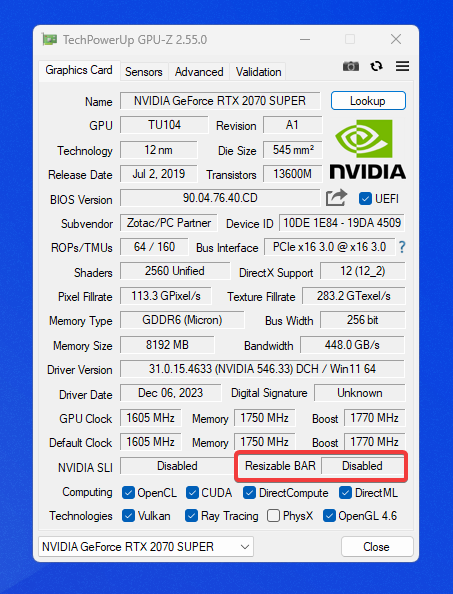
If GPU-Z shows Disabled, click the status text for details on what is still missing.
Step 2: Enable Resizable BAR in the BIOS
- Boot into the BIOS by pressing the firmware key while your PC powers on.
Delis common on desktop boards, but confirm the key for your motherboard or prebuilt system.
- Disable Compatibility Support Module (CSM) in the boot section.
- Enable Above 4G Decoding and Re-Size BAR Support, or the closest wording your firmware uses.
- These options are often under PCI Subsystem Settings or on the main advanced screen.
Step 3: Verify in Windows
- Boot back into Windows.
- Open GPU-Z again and confirm Resizable BAR shows Enabled.
- If it is still disabled, recheck the BIOS options, confirm the GPU driver is current, and make sure CSM stayed off after you saved changes.
If performance becomes less consistent in a specific game, disable Resizable BAR and compare average FPS against 1% low before deciding to leave it on.