
Download Windows
You need a Windows ISO before you can create a bootable USB or reinstall from within Windows. Download an official image and verify it is intact before continuing.
1. Download the ISO
Direct download (recommended)
These buttons request the latest Windows 10 or Windows 11 ISO from Microsoft servers through the MSDL API. JavaScript must be enabled.
Downloader logic adapted from Microsoft Software Download Listing (AGPL-3.0-or-later).
The downloader above fetches the latest ISO directly from Microsoft's servers. JavaScript must be enabled.
Manual download
Use the options below if the downloader does not appear, a request fails, or you prefer Microsoft's own pages.
Open the Windows 11 download page.
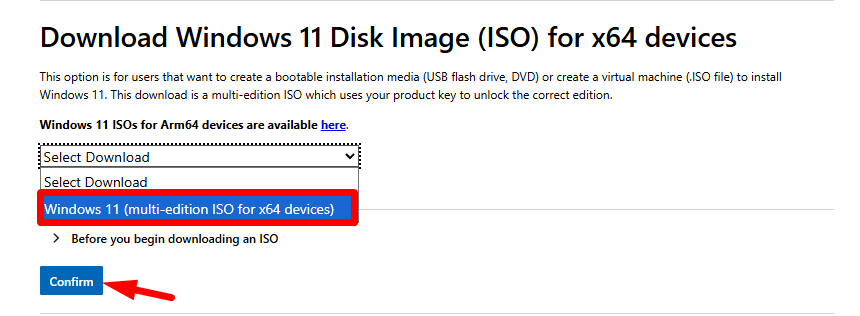
Under Download Windows 11 Disk Image (ISO) for x64 devices, select Windows 11 (multi-edition ISO) and click Download.
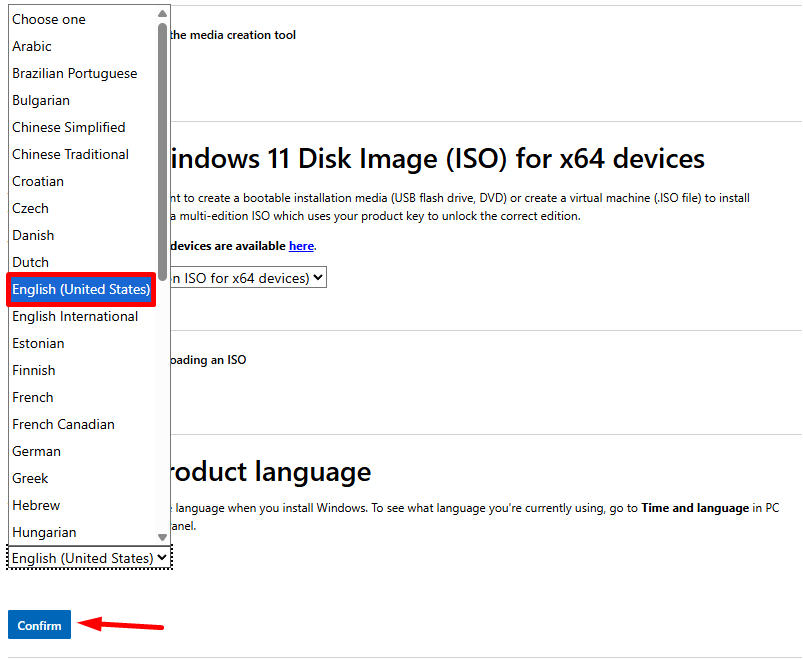
Select your language and click Confirm.
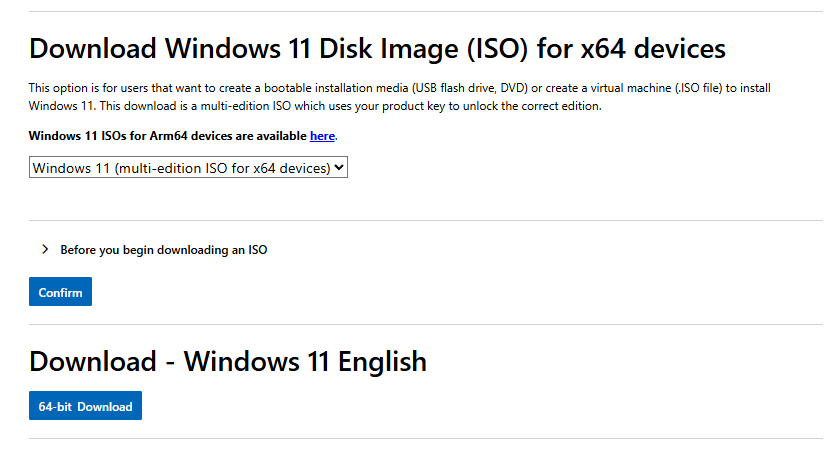
Click 64-bit Download.
2. Verify the ISO
INFO
Microsoft publishes many edition and language variants, so this site does not list every official SHA-256. Comparing two independent downloads from the same source is a reliable consistency check. For more detail, see Verify Windows ISO integrity.
Next step
- USB install (most common): Bootable USB → BIOS / boot order → Setup wizard
- Already on Windows (no USB needed): Setup wizard. Mount the ISO directly or use the PowerShell dual-boot script.